How to Merge Excel Files
A complete step-by-step guide to combining multiple Excel spreadsheets into one file — covering every scenario from basic merges to advanced column mapping.
Drag and drop or click to select your files
Start by uploading two or more Excel files using the drag-and-drop zone on the home page. You can upload XLS (Excel 97-2003), XLSX (Excel 2007+), and CSV files — and even mix different formats in a single merge. Files are listed below the upload zone with their name, size, and detected sheets. You can reorder files by dragging the grip handle, or remove individual files with the delete button.

You can upload files from different sources — sales reports, survey responses, database exports — as long as they are in XLS, XLSX, or CSV format.
Select how you want your files to be combined
On the right side panel, select one of three merge modes: Single Spreadsheet stacks all data into one continuous sheet, perfect for combining similar data. Multiple Sheets places each uploaded file as a separate tab in one workbook, ideal for organizing data by source. Selective Merging lets you pick specific sheets from each uploaded workbook — great when files contain multiple sheets but you only need certain ones.
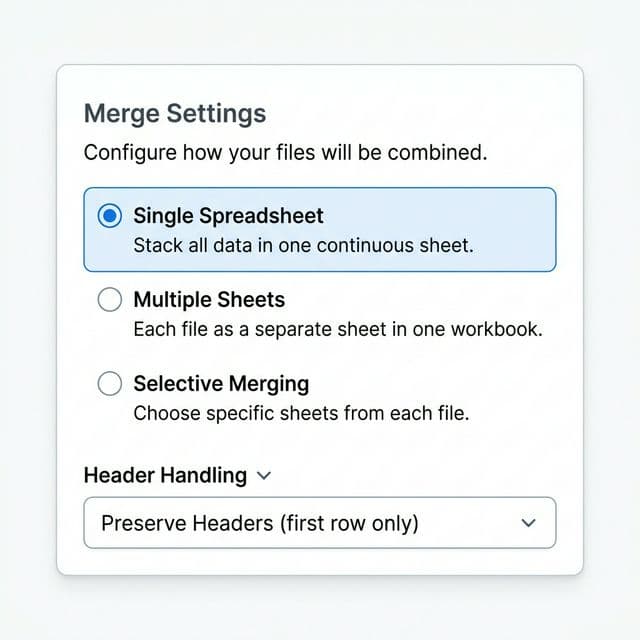
Use Single Spreadsheet when all files share the same column structure (e.g., monthly sales reports). Use Multiple Sheets when you want to keep data separated by source file.
Fine-tune header handling, data range, and formatting
Customize how your merge works with advanced options. Choose Header Handling to control how column headers are treated — preserve only the first row's headers, add sheet name labels to identify data source, or skip header handling entirely. Set a custom Data Range by specifying start and end cells (e.g., A1 to Z1000) to merge only a portion of each file. Enable Preserve Formatting to keep original cell styles, colors, and formatting in the merged output.
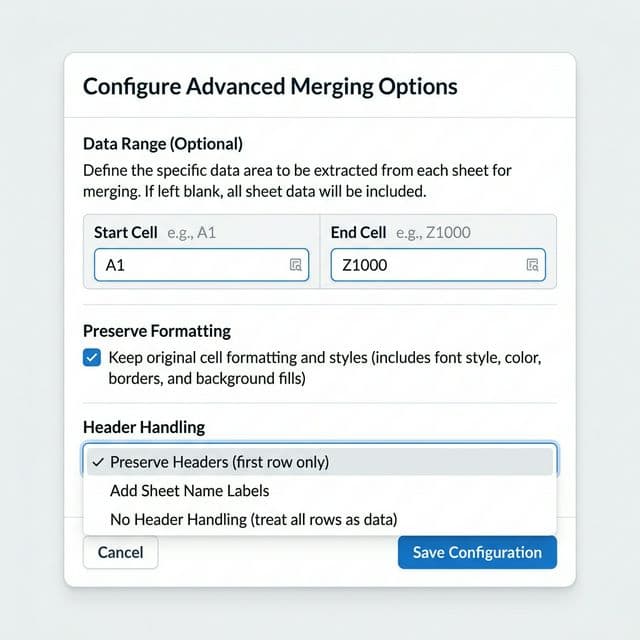
If your files have headers in the first row, always use 'Preserve Headers' to avoid duplicate header rows in the merged output.
Smart matching helps align different column structures
When merging in Single Spreadsheet mode, the tool automatically analyzes column headers across all files. If columns do not match exactly — for example, 'Customer Name' in one file and 'Client Name' in another — a Column Mismatch dialog appears. You can map columns manually using dropdown menus, or click Continue As Is to merge without remapping. The fuzzy matching algorithm suggests the best matches automatically.
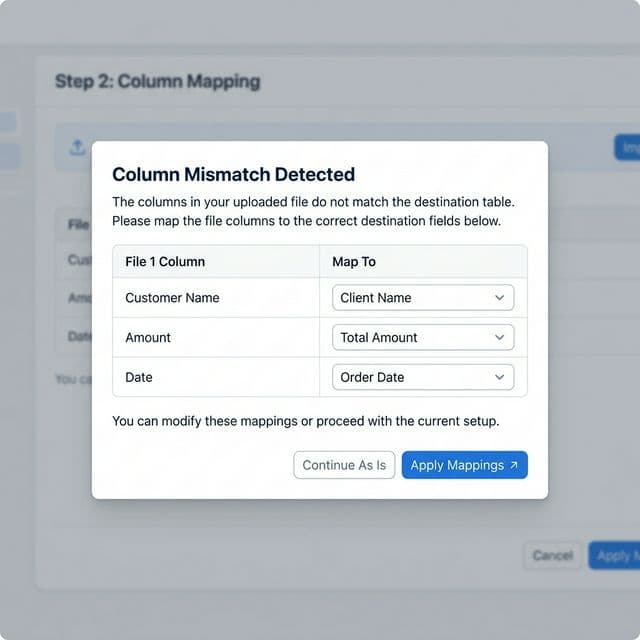
Column conflict resolution only appears in Single Spreadsheet mode. If you want to avoid conflicts entirely, use Multiple Sheets mode instead.
Choose which sheets to include from multi-sheet workbooks
When you upload Excel files with multiple sheets, the Sheet Selection panel appears below the merge options. For each file, you can check or uncheck individual sheets to include or exclude them from the merge. Use the All and None buttons for quick selection. Unchecked sheets will be skipped entirely during the merge process.
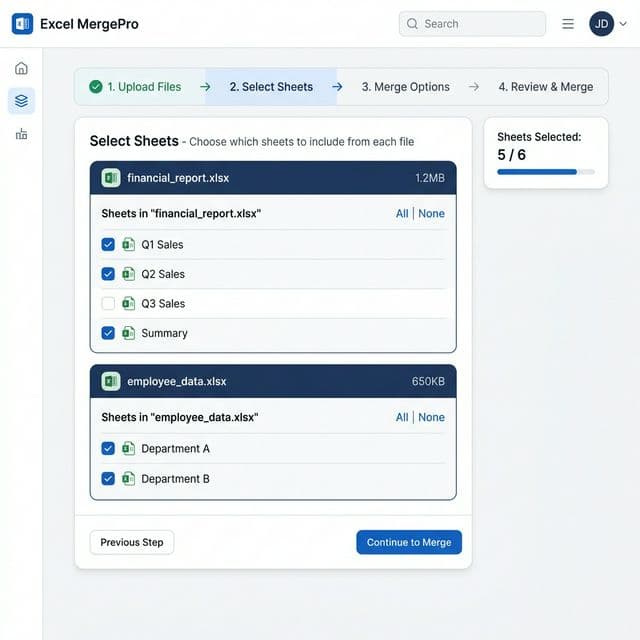
This is especially useful when workbooks contain summary sheets, charts, or metadata sheets that you do not want in the merged output.
Click merge and get your combined file instantly
Once everything is configured, click the Merge Files button. The tool processes all your files locally in your browser — nothing is uploaded to any server. When the merge completes, a green success banner appears and the Download button becomes active. Click Download to save your merged XLSX file. You can also share the tool with colleagues using the social sharing buttons below.

The output is always saved as a modern XLSX file for maximum compatibility with Excel, Google Sheets, and other spreadsheet applications.
Merge Modes Explained
Choose the right merge mode for your scenario
Single Spreadsheet
Stacks all data from every file into one continuous sheet. Ideal for combining files with the same column structure — like monthly reports, survey batches, or regional data exports. Headers are preserved from the first file, and smart column matching aligns data automatically.
Best for: Monthly reports, survey data, similar-structure exports
Multiple Sheets
Places each uploaded file as a separate named tab within a single workbook. The original data structure of each file is preserved completely. This is perfect when you want to consolidate files into one workbook without mixing the data together.
Best for: Organizing files by source, archiving multiple reports
Selective Merging
Gives you full control over which sheets from each workbook are included in the merge. Upload multi-sheet Excel files and hand-pick only the sheets you need. Unselected sheets are skipped entirely.
Best for: Multi-sheet workbooks, extracting specific data
Advanced Options Guide
Fine-tune every aspect of the merge process
Header Handling
Control how column headers are treated during the merge. 'Preserve Headers' keeps only the first file's header row, preventing duplicate headers. 'Add Sheet Labels' inserts the source sheet name before each file's data for easy identification. 'No Handling' treats all rows equally with no special header logic.
Data Range
Limit the merge to a specific cell range. Enter a start cell (e.g., A1) and end cell (e.g., Z1000) to extract only a portion of each file. This is useful when your files contain extra metadata, notes, or formatting outside the main data area.
Preserve Formatting
Keep the original cell formatting, colors, font styles, and conditional formatting from your source files in the merged output. When disabled, only raw data values are transferred.
Pro Tips for Best Results
Ensure all files use the same column order and naming for cleanest Single Spreadsheet merges.
Large files? Close other browser tabs to free up memory for faster processing.
Reorder files by dragging the grip handle — the merge order matches the file list order.
You can mix XLS, XLSX, and CSV files in a single merge operation.
All processing happens in your browser — your files never leave your device.
Use the Data Range option to skip header rows or footer notes in messy spreadsheets.
Ready to Merge Your Files?
Start merging your Excel files now — it is free and takes just seconds.
Start Merging Now